Account Management
The UMIE Dashboard is your central hub for managing licenses, activations, AI credits, and downloads.
Logging In
Section titled “Logging In”Magic Link (Email)
Section titled “Magic Link (Email)”- Go to umie.pro/auth/login
- Enter your email address
- Check your inbox for the login link
- Click the link to be signed in automatically
No password is required — the magic link is valid for a single use and expires after 15 minutes.
Passkey Login
Section titled “Passkey Login”If you’ve set up a passkey (see Security below), you can sign in instantly:
- Go to umie.pro/auth/login
- Enter your email address (the passkey option appears when passkeys exist for that account)
- Click Sign in with Passkey
- Authenticate using your device (fingerprint, Face ID, or security key)
Dashboard Overview
Section titled “Dashboard Overview”After logging in, you’ll see a summary of your account:
- Licenses: Your active keys and plan status.
- AI Credits: Your current balance of tokens for AI features.
- Security: Manage passkeys for passwordless login.
For new accounts, UMIE automatically provisions:
- A free license (if none exists yet)
- Starter AI token credits
License Management
Section titled “License Management”Navigate to Licenses to manage your keys.
Creating a Free License
Section titled “Creating a Free License”You can generate a free license from the Licenses page:
- Click Create Free License
- Enter your WordPress site’s domain (e.g.,
mysite.com) - Copy the generated license key (
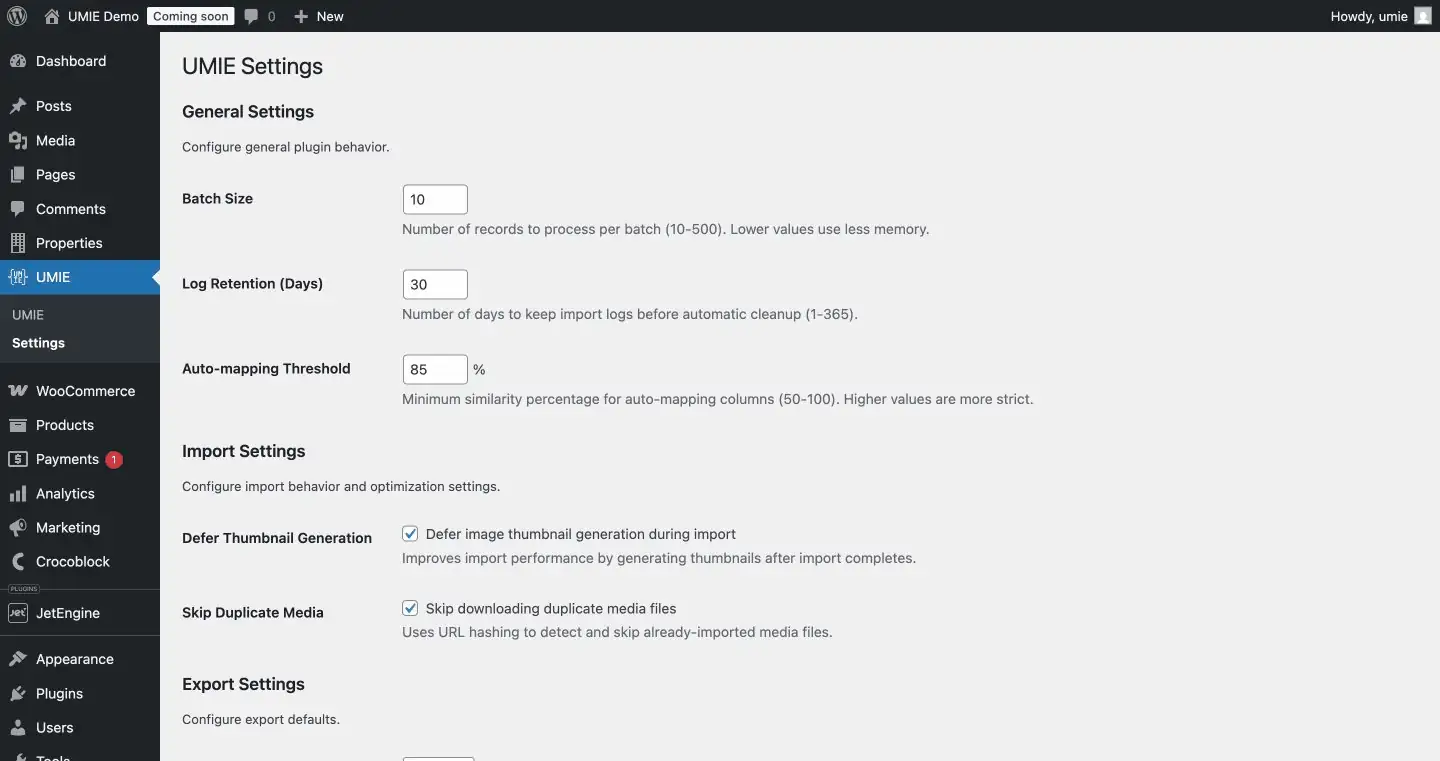
UMIE-....) - Paste it into your WordPress plugin settings at WordPress Admin Sidebar > UMIE > Settings
Managing Activations
Section titled “Managing Activations”Each license has a limit on the number of active sites.
- View Activations: Click “View Activated Sites” on any license card to see where it’s currently used.
- Remote Deactivation: If you lost access to a site or deleted it without deactivating, you can click Deactivate next to the site domain to free up the slot.
Credit Management
Section titled “Credit Management”Navigate to Credits to manage your AI usage.
Understanding Credits
Section titled “Understanding Credits”Credits are used for:
- AI Field Mapping: Automatically matching source columns to target fields.
- AI Data Extraction: Converting unstructured text into structured data.
- AI Rewrite: Transforming and enriching mapped text fields before import/update.
- AI Image Matching: Matching uploaded images to records using semantic analysis.
- AI Image Enrichment: Generating alt text, titles, captions, and filename improvements.
- Vision-assisted Image Processing: Additional image understanding steps when vision options are enabled.
- AI-assisted Content Generation Flows: Prompt-based generation features that output import-ready structures.
For per-feature estimates and examples, see AI Credit Usage Guide.
Monthly Allowance
Section titled “Monthly Allowance”- Pro Plans include a monthly allowance of credits (e.g., 500,000 tokens/month).
- These credits reset every month on your billing date.
Token Packs
Section titled “Token Packs”If you run out of monthly credits, you can purchase Token Packs from the Credits page. Available pack sizes and prices are shown in-app and may vary by current configuration.
Note: Purchased token packs never expire and are used only after your monthly allowance is exhausted.
Transaction History
Section titled “Transaction History”The bottom of the Credits page shows a detailed log of all credit usage and purchases, helping you track exactly how your tokens are being spent.
Downloads
Section titled “Downloads”Navigate to Downloads to access the UMIE plugin.
- Latest Version: Download the most recent stable release as a ZIP file
- License-based Access: Free downloads are available to authenticated users; Pro builds require an active Pro license
To install, upload the ZIP file via Plugins > Add New > Upload Plugin in your WordPress admin, or extract it into your wp-content/plugins/ directory.
Security & Passkeys
Section titled “Security & Passkeys”Navigate to Security (or the passkey icon in the sidebar) to manage your authentication methods.
Setting Up a Passkey
Section titled “Setting Up a Passkey”Passkeys provide fast, passwordless login using your device’s built-in authentication (fingerprint, Face ID, Windows Hello, or a hardware security key).
- Go to Security in your dashboard
- Click Add Passkey
- Follow your browser/device prompt to register the credential
- Give it a name (e.g., “MacBook Pro”, “iPhone”)
You can register multiple passkeys for different devices.
Removing a Passkey
Section titled “Removing a Passkey”Click Remove next to any registered passkey to delete it. You can always sign in via magic link if no passkeys are configured.
Upgrading Your Plan
Section titled “Upgrading Your Plan”To upgrade from the Free plan to a Pro plan:
- Go to umie.pro/pricing or click Upgrade in your dashboard
- Select the plan that fits your needs (1 Site, 5 Sites, or 25 Sites)
- Complete secure checkout
- Your license is upgraded immediately — no reactivation needed
Purchasing Token Packs
Section titled “Purchasing Token Packs”If you need additional AI credits beyond your monthly allowance:
- Go to Credits in your dashboard
- Click Buy Token Pack
- Select the pack size that fits your usage
- Complete payment — tokens are added instantly and never expire
Billing & Subscription
Section titled “Billing & Subscription”Subscriptions and token-pack payments are processed through secure checkout.
- Purchase and upgrade flows start from Pricing or relevant account pages.
- Token pack purchases are available from Credits.
- Subscription credits refresh automatically on billing cycles.