Image Import
Image Import lets you upload local images (files, folders, or ZIP archives), match them to your records, and attach them during import.
How It Works
Section titled “How It Works”Image Import uses a guided 6-phase flow:
- Upload - Upload images, folders, or ZIP archives to temporary cloud staging.
- Match - Match images to records using selected data fields and vector-based matching.
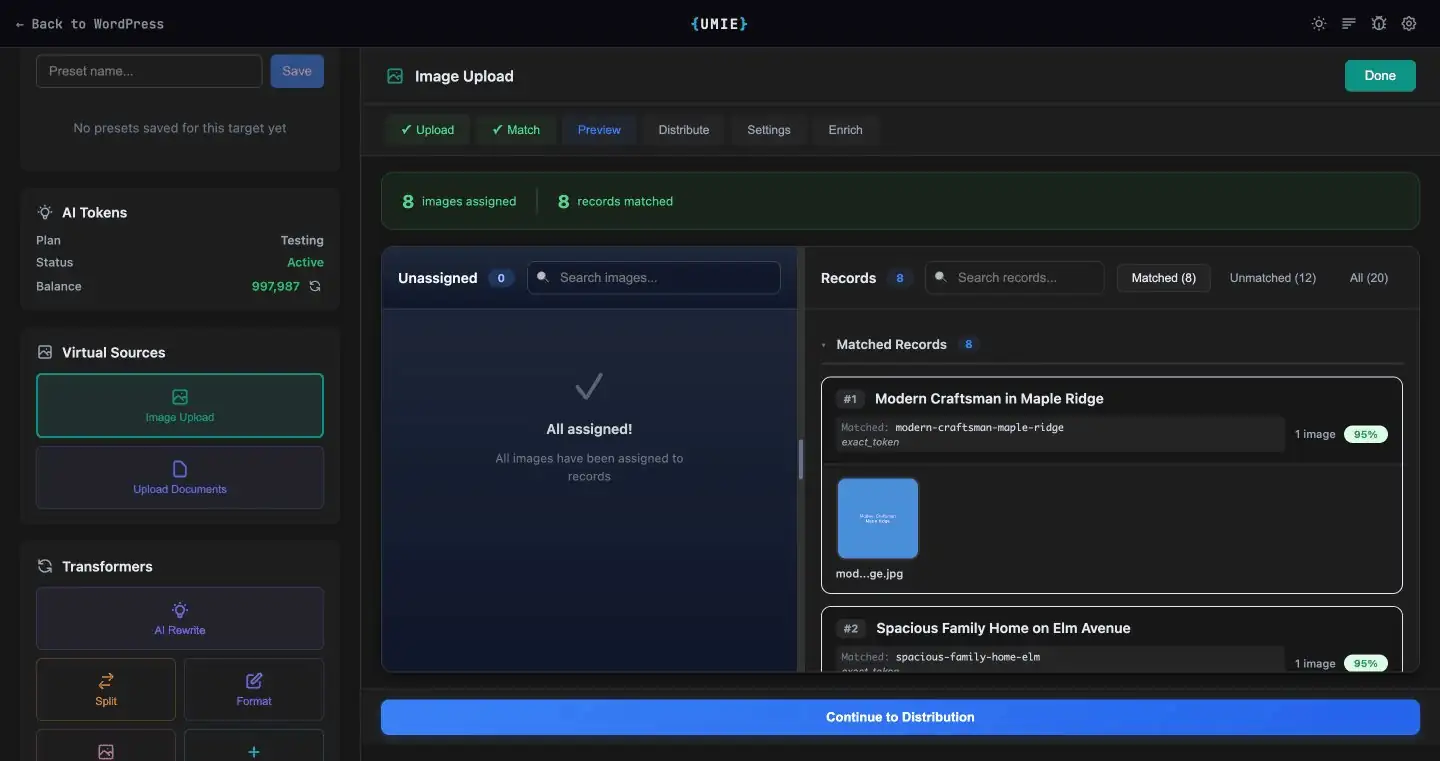
- Preview - Review and fix matches before import.
- Distribute - Assign matched images to destination media fields.
- Process - Set image processing and enrichment options.
- Enrich - Run AI enrichment for selected options.
Requirements
Section titled “Requirements”- A valid UMIE license key.
- Source records loaded (file, AI extraction, or driver source).
- Local images in common formats (or ZIP archive).
Organizing Images for Better Matching
Section titled “Organizing Images for Better Matching”Best practices:
- Use descriptive filenames (
nike-air-max-red.jpginstead ofIMG_0042.jpg). - Include IDs/SKUs in names if your records contain them.
- Keep each record’s images grouped in folders when possible.
- Use consistent naming patterns across batches.
Phase 1: Upload
Section titled “Phase 1: Upload”Upload supports:
- Multiple image files
- Folder upload (including nested folders)
- ZIP archives (with extraction progress)
- Reusing a recent upload session
UMIE uploads images to temporary cloud staging first, then uses that session through matching and import.
Phase 2: Match
Section titled “Phase 2: Match”Select 1-3 fields that best identify records (for example: title, SKU, product name), then run matching. Matching is vector-based.
Confidence Levels
Section titled “Confidence Levels”- 85%+: High confidence
- 70-84%: Medium confidence (review recommended)
- Below 70%: Low confidence (manual review recommended)
Phase 3: Preview
Section titled “Phase 3: Preview”Preview is a split-screen workspace for validating and fixing matches before import.
Layout
Section titled “Layout”- Left panel (Unassigned): image pool grouped by folder.
- Right panel (Records): matched records and unmatched records.
- Top summary bar: quick totals for assigned images, matched records, and remaining unassigned files.
Left Panel: Unassigned Files
Section titled “Left Panel: Unassigned Files”You can manage unassigned images with:
- Folder grouping (including nested folder paths)
- Search by filename/path
- Folder filter (
All foldersor one specific folder) - Expand All / Collapse All
- Per-folder collapse/expand
- Image zoom (lightbox preview)
Each unassigned folder can be dragged as a unit to assign all files in that folder to a record.
Right Panel: Records
Section titled “Right Panel: Records”Records panel includes:
- Tabs: Matched, Unmatched, All
- Search across record titles (and matched filenames for matched records)
- Collapsible sections for matched/unmatched groups
- Confidence badges on matched records
- Folder-grouped image display inside each record card
- Empty drop zones on unmatched records for quick assignment
Drag-and-Drop Operations
Section titled “Drag-and-Drop Operations”Supported reassignment actions:
- Drag single image from unassigned -> record
- Drag single image from record -> another record
- Drag single image from record -> unassigned (left panel)
- Drag folder group from unassigned -> record (bulk assign)
- Remove assigned image from a record (moves it back to unassigned)
UMIE automatically updates matched/unmatched record lists as you move files.
Low-confidence groups that are not auto-matched are surfaced as unassigned files here, so you can resolve them manually in Preview.
Phase 4: Distribute
Section titled “Phase 4: Distribute”If your destination has multiple media fields, assign matched images to specific fields.
Common presets include:
- first image -> featured, rest -> gallery
- all images -> first media field
- round-robin across available media fields
Phase 5: Process
Section titled “Phase 5: Process”Configure processing for matched images:
- Format: Original, WebP, or AVIF
- Max size: No limit, 1024, 1600, 2048, or 3840
Configure optional AI enrichment:
- SEO Filenames
- Alt Text
- Vision AI
- Context Fields (choose which source fields guide enrichment)
Phase 6: Enrich
Section titled “Phase 6: Enrich”If enrichment is enabled, UMIE processes images and stores generated metadata before import.
Live progress shows:
- current image/batch progress
- successful vs failed enrichments
- token usage summary
Website Context
Section titled “Website Context”For better enrichment quality, set your site context in:
WordPress Admin Sidebar > UMIE > Settings > Website Context
This context helps produce more relevant filenames and alt text.
Troubleshooting
Section titled “Troubleshooting”Upload fails
Section titled “Upload fails”- Verify license is active.
- Check outbound HTTPS access from your server/network.
- Confirm files are valid image formats or ZIP.
Low-confidence matches
Section titled “Low-confidence matches”- Use more descriptive filenames and folder names.
- Choose stronger matching fields (title/SKU/category).
- Organize images into clear folders to improve grouping context.
Unexpected matches
Section titled “Unexpected matches”- Correct assignments in Preview before import.
- Check for duplicate or very similar record names.
Format conversion issues
Section titled “Format conversion issues”- WebP/AVIF support depends on your server image stack.
- If unsupported, import falls back to original format.