AI Field Mapping
UMIE’s AI field mapping uses advanced language models to intelligently match your source file columns to your WordPress target fields, saving you hours of manual configuration.
How It Works
Section titled “How It Works”- Upload File: Upload your JSON, CSV, or XML file.
- Select Driver: Choose your target (e.g., WooCommerce Product, ACF Fields).
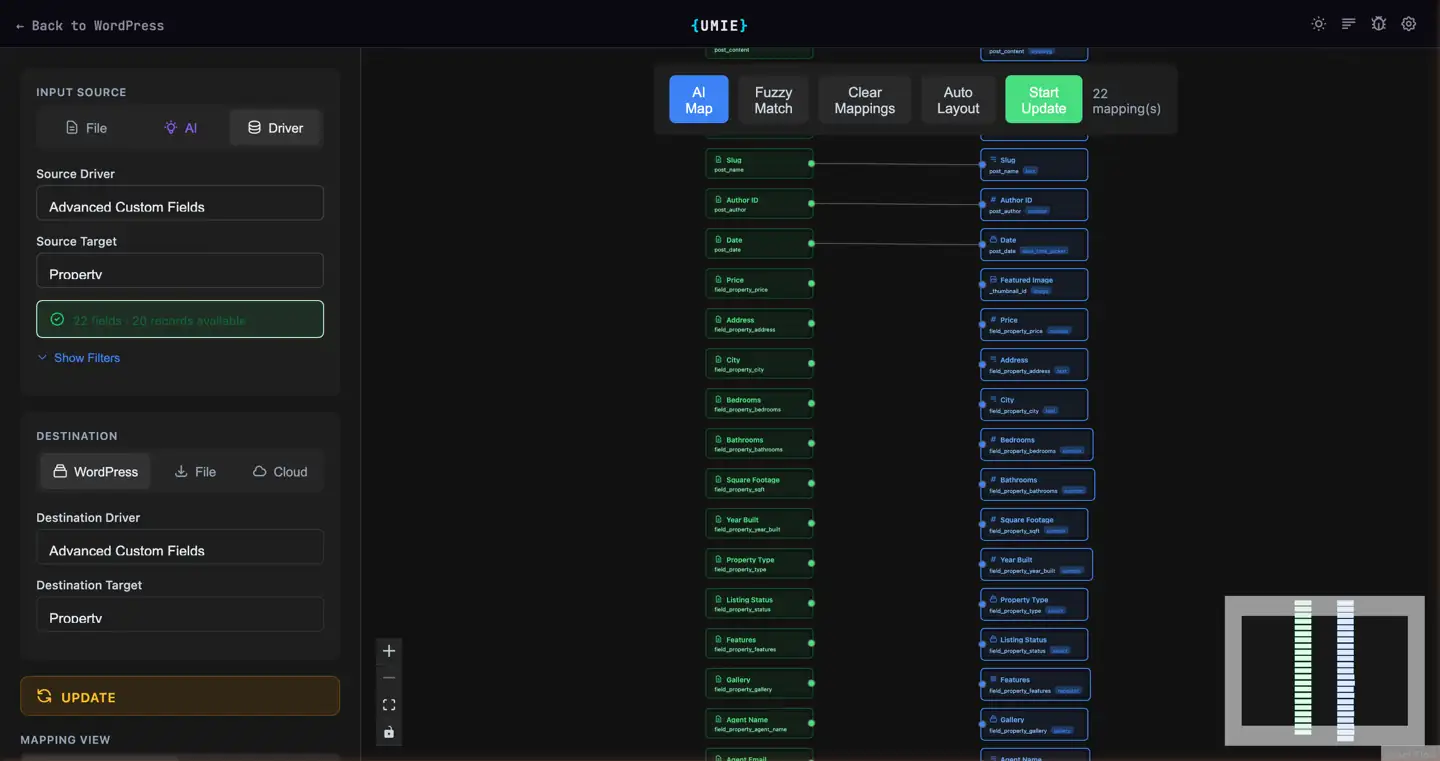
- AI Map: Click the “Magic Map” button in the mapping interface.
- Analysis: UMIE sends the column names and target schema to our AI engine.
- Result: The AI returns the best possible matches with confidence scores.
Requirements
Section titled “Requirements”- A valid UMIE License Key (Free or Pro)
- Available AI Credits in your account
Note: You do not need your own API key. All requests are proxied securely through the UMIE platform using your license credits.
Configuration
Section titled “Configuration”AI features are enabled automatically when you activate your license.
- Go to WordPress Admin Sidebar > UMIE > Settings.
- Enter your License Key.
- Verify the status shows “Active” and you have a positive Credit balance.
Fallback to Fuzzy Matching
Section titled “Fallback to Fuzzy Matching”In Settings > License & AI Features, you can enable “Fall back to fuzzy matching”.
If the AI service is unavailable or you run out of credits, UMIE will automatically switch to a local string-similarity algorithm to suggest mappings (e.g., matching “Product Name” to post_title).
Confidence Scores
Section titled “Confidence Scores”The interface color-codes mapping suggestions based on confidence:
| Color | Score | Meaning |
|---|---|---|
| Green | 90-100% | High confidence match |
| Yellow | 70-89% | Likely match, review recommended |
| None | < 70% | No suggestion provided |
Credit Usage
Section titled “Credit Usage”AI mapping credit usage depends on the number of fields and schema complexity.
Check your balance at any time in the Account Dashboard.