AI Data Extraction
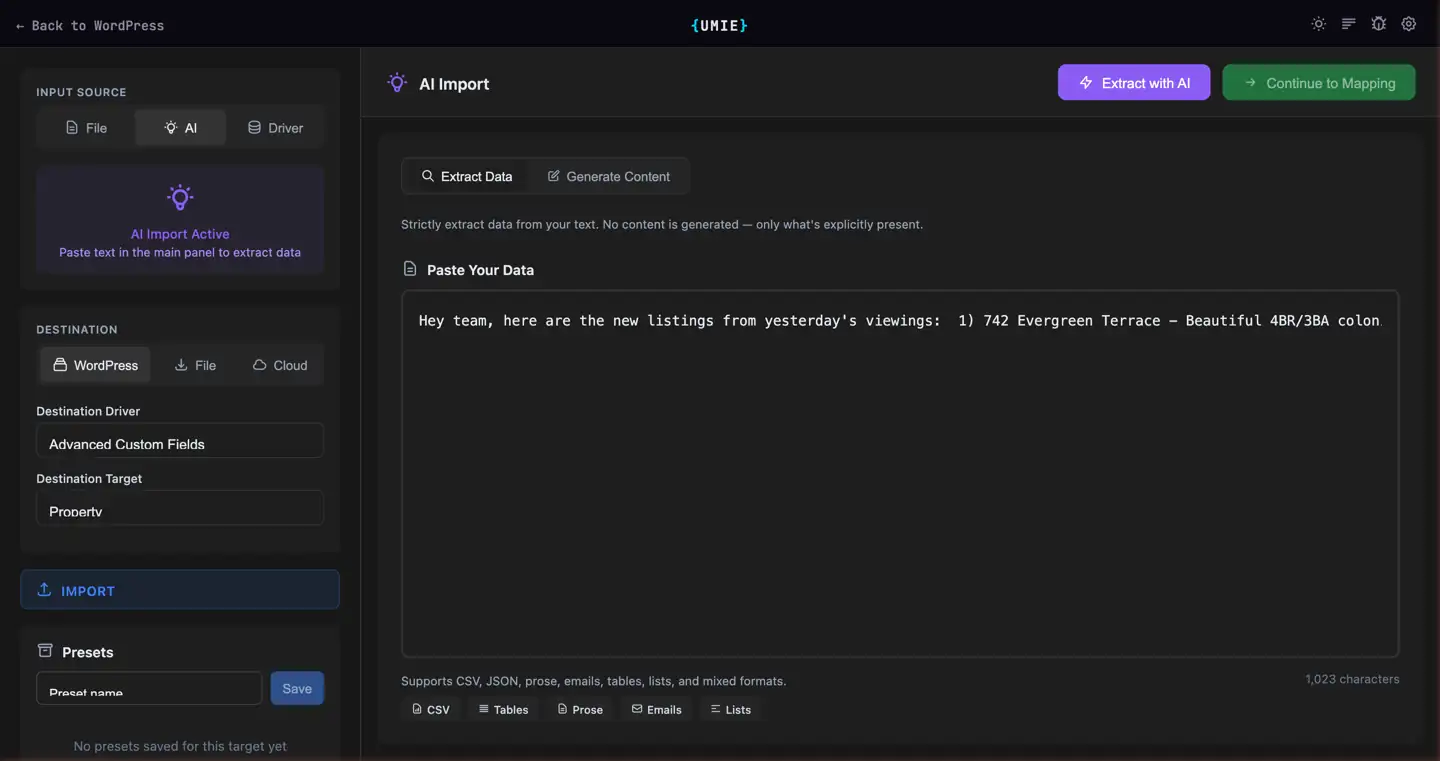
AI Data Extraction allows you to copy-paste unstructured text (emails, PDFs, websites, lists) and have UMIE convert it into structured rows for import.
How It Works
Section titled “How It Works”- Select Source: In Input Source, choose
AI. - Paste Text: Paste any text block into the input area.
- Set Destination: Choose
WordPress, then select the destination Driver and Target. - Extract: Click Extract with AI.
- Review: The AI analyzes the text and produces a table of records with confidence indicators:
- 🟢 Green: High confidence (>85%)
- 🟡 Yellow: Medium confidence (70-85%)
- 🔴 Red: Low confidence (<70%) - review these carefully
- Edit: You can edit cell values directly in the preview table or delete rows before importing.
- Import: Proceed to the standard mapping and import process.
Requirements
Section titled “Requirements”- A valid UMIE License Key
- Available AI Credits
Supported Inputs
Section titled “Supported Inputs”The AI is flexible and can handle various formats:
- Lists: “1. Item A - $10, 2. Item B - $20”
- Emails: “Here are the new user details: John (Dev), Jane (Design)…”
- Specs: Technical specification sheets
- Mixed: Messy copy-pastes from spreadsheets or PDFs
Large Text & Streaming
Section titled “Large Text & Streaming”UMIE uses Real-time Streaming technology for data extraction. This means:
- You can paste very large blocks of text (e.g., entire legal contracts or long product lists).
- The results appear row-by-row as they are generated, rather than waiting for the whole process to finish.
- This prevents server timeouts and allows for unlimited extraction size, bounded only by your credit balance.
Credit Usage
Section titled “Credit Usage”Extraction is more intensive than mapping. Usage depends on the length of the input text and the complexity of the output schema.
Privacy & Security
Section titled “Privacy & Security”Your data is processed securely via the UMIE AI Proxy.
- Data is not stored by UMIE.
- Data is processed only for the request and returned immediately.
- Your data is not used for model training.