Data Import
Import writes data into WordPress destinations (posts, CPTs, products, and custom fields).
Supported Import Sources
Section titled “Supported Import Sources”- File: Upload JSON, CSV, or spreadsheet-style data.
- AI: Paste unstructured text, extract records, then map/import.
- Driver: Read from an existing WordPress driver source.
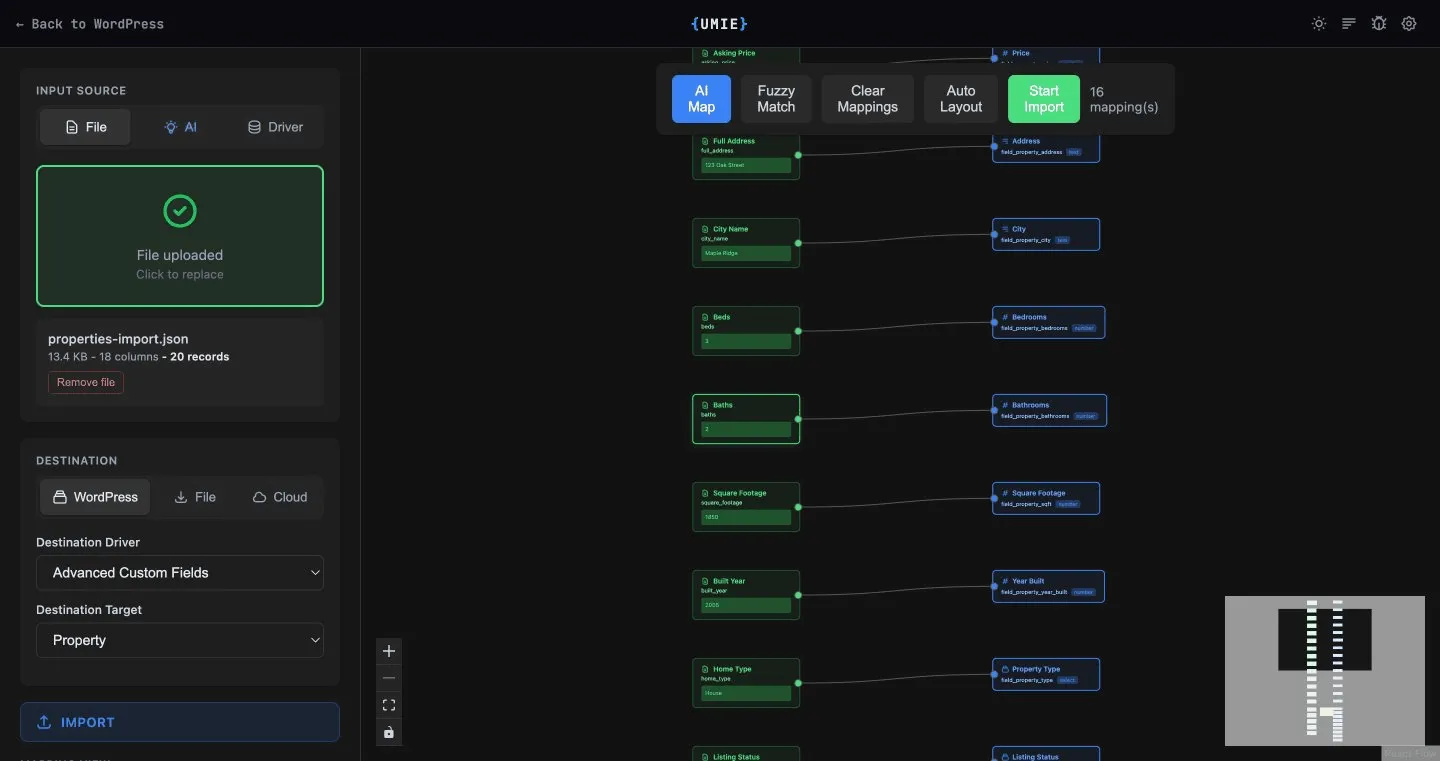
Standard Import (File or AI to WordPress)
Section titled “Standard Import (File or AI to WordPress)”- Open WordPress Admin Sidebar > UMIE.
- In Input Source, choose
FileorAI. - In Destination, choose
WordPress. - Select Destination Driver (for example Native, ACF, JetEngine, MetaBox, WooCommerce).
- Select Destination Target (post type, product type, CCT, or another target supported by that driver).
- Map fields in Node View or Table View.
- (Optional) If a multilingual plugin is active, select a Destination Language to assign to all imported posts.
- Run Start Import.
Destination Selection Checklist
Section titled “Destination Selection Checklist”For any import to WordPress, you must configure both:
- Destination Driver: where UMIE writes data.
- Destination Target: what structure/object type UMIE writes into.
Examples:
Native+post(blog posts)WooCommerce+productJetEngine+ a specific CPT/CCT target
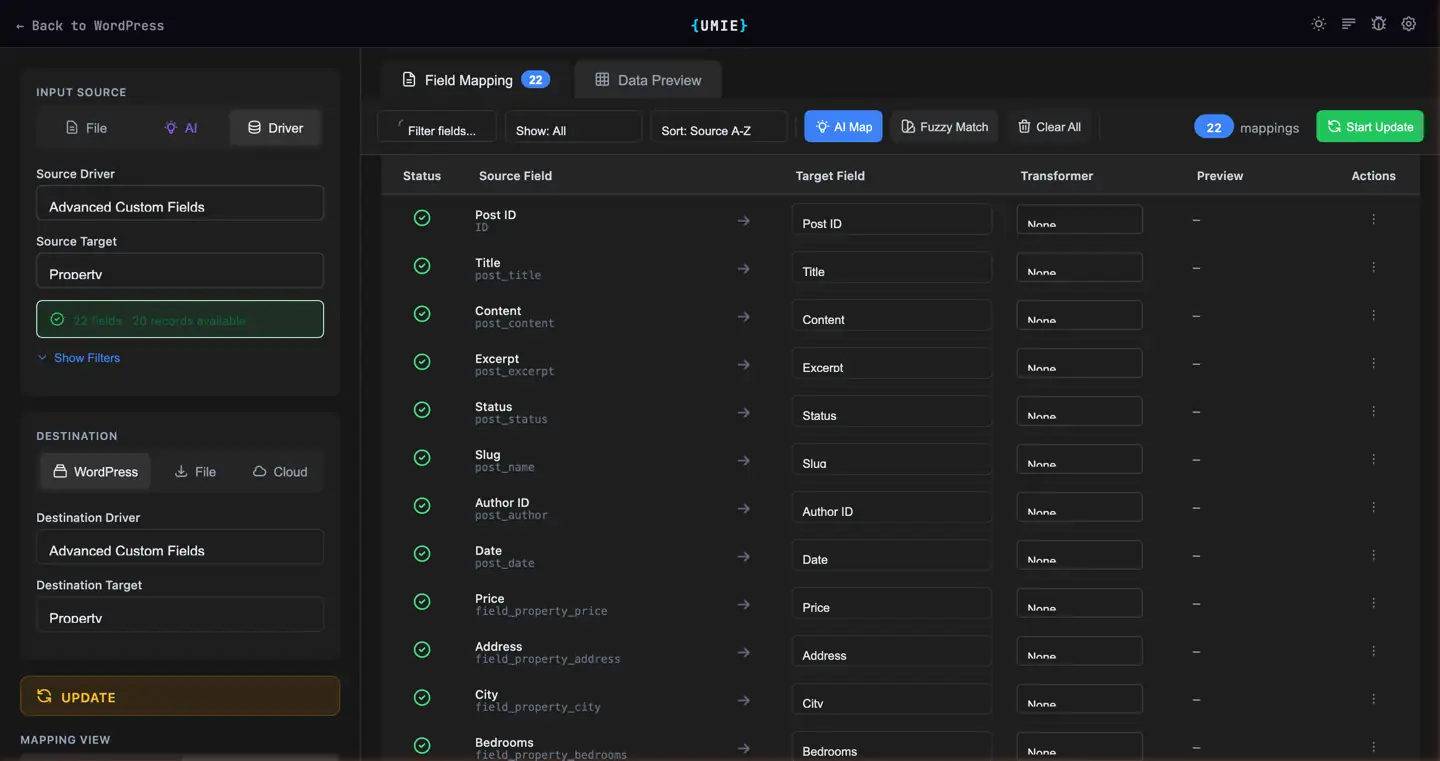
Driver-to-WordPress Import
Section titled “Driver-to-WordPress Import”If you select:
- Input Source:
Driver - Destination:
WordPress
UMIE automatically treats this as either:
- Update (same driver + same target), or
- Migration (different source and destination)
See:
Document Upload (Virtual Source)
Section titled “Document Upload (Virtual Source)”UMIE also supports document/file assignment through a virtual source workflow.
- In Virtual Sources, click Upload Documents.
- Upload files/folders/ZIPs.
- Match files to records.
- Review assignments in Preview.
- Distribute files to destination file/media fields.
See:
Input/Output Quick Rules
Section titled “Input/Output Quick Rules”FileorAIinput +WordPressdestination => ImportDriverinput +WordPressdestination => Update or MigrationDriverinput +Filedestination => Export- Any input +
Clouddestination => Cloud Push (Pro)
- Use Data Preview to verify rows before running import.
- If you use AI Rewrite, run preprocessing before final import/update.
- For large jobs, the process continues in background workers.